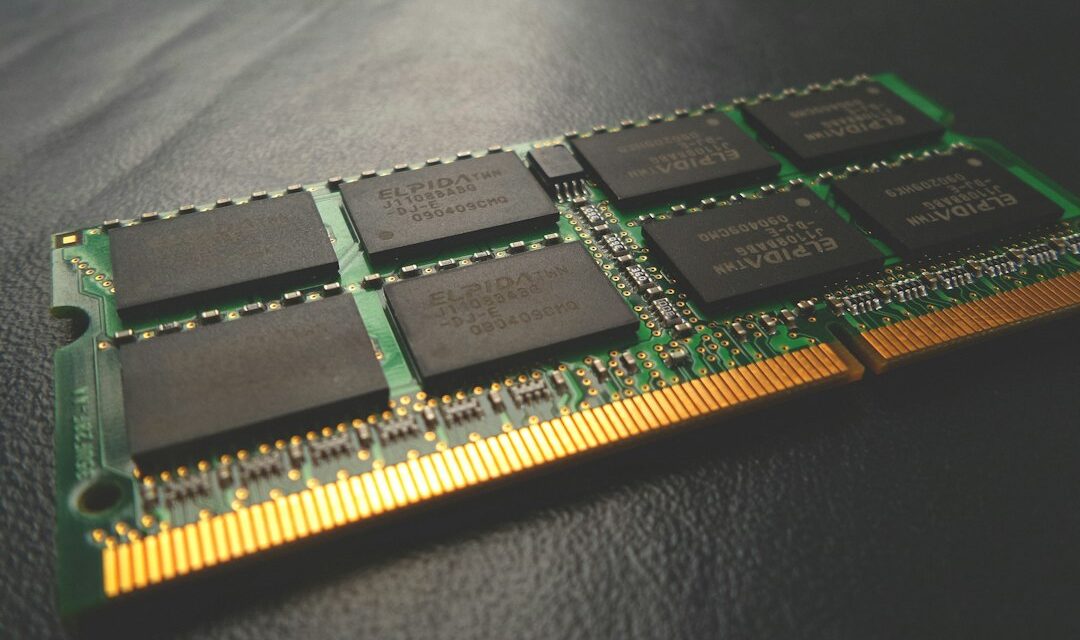
Disclosure: this post contains Amazon affiliate links. As an Amazon Associate we earn from qualifying purchases, at no extra cost to you.
Windows 11 RAM consumption has been a hot topic among users, with many reporting high idle memory usage. Recent discussions on platforms like Reddit highlight frustrations from Indian users facing this issue, especially in a country where system performance can be a barrier to productivity. The recently released 26H2 update reportedly aims to address some of these concerns, with a potential drop of up to 2GB in RAM usage for high-memory systems. However, users with only 8GB of RAM might not notice any significant improvement. Microsoft acknowledges the rising cost of memory and the need for better optimizations, yet many users are left wondering if these updates genuinely enhance performance or if they’re just a temporary fix. This article will look into the factors influencing Windows 11 RAM consumption and what it means for you.
Want to see what it costs right now? Check computer ram upgrade price on Amazon.in
Quick facts
| Detail | What’s been reported |
|---|---|
| Windows 11 version | 26H2 |
| RAM usage drop for high-memory systems | 2GB |
| Impact on 8GB RAM systems | No difference noted |
| Reason for high RAM consumption | Rising cost of memory |
| Source of RAM consumption discussion | Reddit r/IndiaTech |
Based on recent media reports. Confirm final details on the brand’s official site.
Understanding Windows 11 ram consumption
Windows 11 RAM consumption has been a hot topic, especially among users with limited memory. The recent rollout of the Windows 11 26H2 update has reportedly managed to drop RAM usage by up to 2GB on higher-memory systems. However, users with only 8GB of RAM haven’t seen any notable improvements. This discrepancy is particularly significant for those in India who often build budget PCs to maximize value.
The noticeable rise in idle RAM consumption draws concern, with reports mentioning that Windows 11’s background processes are responsible for this high usage. Many users on platforms like Reddit have expressed frustration, as it affects system performance and responsiveness, especially during peak summer months when power and heat management become important. If your PC struggles in the heat, high RAM consumption can worsen thermal throttling and performance issues.
Microsoft attributes the excessive RAM usage to the rising cost of memory, indicating that optimizing the operating system is a complex endeavor. While they’ve introduced some improvements, we’re still left questioning how effectively these changes translate to real-world use. There are hints that future updates could bring further reductions, but until they arrive, users can manually disable unnecessary background services to free up RAM.
For those gaming or working with memory-intensive applications, here’s what you should consider:
- Assess the impact of background services.
- Monitor system performance during heavy usage.
- Keep an eye on future updates for potential improvements.
Ultimately, if you’re running on lower RAM, these optimizations are important to maintaining fluid performance, but the full effect may still be a waiting game. Keep monitoring user feedback as independent reviews will shed more light on these updates soon.
Browse computer ram upgrade on Amazon.in
Recent updates and their impact on Windows 11 ram consumption
Recent updates to Windows 11, particularly the 26H2 update, are expected to alter RAM consumption patterns. Microsoft claims this update could decrease RAM usage by up to 2GB on high-memory systems. This change is significant for users who run memory-intensive applications or multitask heavily. However, users with 8GB of RAM might not notice any meaningful difference, as reports suggest their systems will see no tangible improvements.
The concerns around high RAM consumption in Windows 11 have been widely discussed on platforms like Reddit. Users have pointed to idle RAM usage as too high, leading many to explore ways to manage their resources better. Some have found that disabling certain background services can free up gigabytes of RAM instantly, indicating that individual configurations can still have an impact, regardless of system specs.
While the 26H2 update won’t be a cure-all for everyone, it’s a step in the right direction. Users with higher RAM configurations should be on the lookout for noticeable performance improvements in multitasking and heavy application scenarios. Still, clarity on how significant these changes will be for lower-spec systems remains elusive.
Here are a few things to consider:
- Monitor RAM usage: Use built-in tools to track how much RAM is being consumed before and after the update.
- Explore background settings: Review and disable unnecessary services that may be hogging resources.
- Stay updated: Keep an eye on future patches that might address ongoing issues with RAM efficiency.
Given the rising cost of memory, these updates could prove beneficial, but for many users, especially those with 8GB of RAM, the promised relief may not materialize. As with all updates, the true impact will only become clear through user experiences and community feedback.
Tips to manage Windows 11 ram consumption effectively
Managing Windows 11 RAM consumption can be a real challenge, especially if you’re using older hardware with limited memory. While the recent updates, particularly the 26H2 version, are aimed at reducing RAM usage—reportedly by up to 2GB for high-memory systems—users with only 8GB may not see any benefits. Here are some actionable tips to help you manage RAM effectively.
First, consider disabling unnecessary background services. Some users have reported freeing up several gigabytes of RAM by turning off various Windows services. This can lead to improved performance, but be cautious—disabling critical services may cause stability issues. It’s worth researching which services can be safely disabled based on your usage patterns.
Another approach is to limit the number of applications running simultaneously. Applications like Microsoft Teams, Chrome, and even some background apps can hog memory. If you’re a gamer or use resource-intensive software, prioritizing these can enhance your experience.
Also, check your startup programs. Many applications set themselves to start automatically, which can lead to high RAM consumption upon boot. Disabling these can free up memory and speed up boot times.
Consider upgrading your RAM if feasible and if your motherboard supports it. While this is a more expensive approach, it can significantly alleviate the pressure on your system, especially for gaming or heavy multitasking.
Keep an eye on future updates from Microsoft. The ongoing development indicates that further optimizations are on the way, but the specifics of these improvements remain uncertain. Users with older systems should be particularly vigilant as they may benefit from future enhancements.
In essence, managing RAM usage in Windows 11 requires a combination of system adjustments and a bit of patience as updates roll out. Stay updated and adjust your habits to get the most out of your machine.
Frequently Asked Questions
What is Windows 11 ram consumption?
Windows 11’s RAM consumption refers to the amount of memory the operating system uses while running. Recent reports indicate high idle RAM consumption, which can be a concern for users, especially on systems with limited memory.
Why is Windows 11 ram usage so high?
Windows 11’s RAM usage is high due to various background processes and services running by default. These include features designed to enhance user experience and security, which can lead to increased memory consumption, especially on low-RAM systems.
How can I reduce Windows 11 ram consumption?
You can reduce Windows 11 RAM consumption by disabling unnecessary background services and applications. Some users have reported freeing up gigabytes of RAM by selectively disabling certain Windows services. However, specific steps may vary based on your setup.
What recent updates address Windows 11 ram usage?
The recent Windows 11 26H2 update reportedly cuts RAM usage by up to 2GB for high-memory systems. However, users with 8GB of RAM have noticed little to no difference, indicating that optimizations may not significantly benefit all configurations.
How do I check Windows 11 ram usage?
To check Windows 11 RAM usage, you can open the Task Manager by pressing Ctrl + Shift + Esc. From there, go to the ‘Performance’ tab to view the memory usage and other details about your system’s RAM.
Does upgrading RAM help with Windows 11 performance?
Upgrading RAM can enhance Windows 11 performance, especially on systems running with 8GB or less. More RAM can allow for smoother multitasking and better handling of memory-intensive applications, but the impact varies based on usage.
What are common causes of high RAM usage in Windows 11?
Common causes of high RAM usage in Windows 11 include multiple background processes, memory-hungry applications, and insufficient RAM for the tasks you’re performing. Background services and features designed for security and performance also contribute to the overall consumption.
Conclusion
The recent updates to Windows 11, particularly the 26H2 rollout, are a mixed bag for users grappling with high RAM consumption. While the update has reportedly reduced RAM usage by up to 2GB for high-memory systems, users with just 8GB of RAM may not see any difference at all. This highlights a critical issue: for those with lower memory configurations, optimizations remain elusive. If you’re relying on an 8GB system and find your performance lacking, it might be worth waiting for further enhancements before upgrading to Windows 11. For users with higher specs, the update is a step in the right direction.
What have your experiences been with Windows 11’s RAM usage? Share your thoughts below.
See computer ram upgrade deals on Amazon.in (prices and offers change often, so check before you buy).